Turn your conference poster into a Research Communities blog
Published in Healthcare & Nursing, Astronomy, and Social Sciences
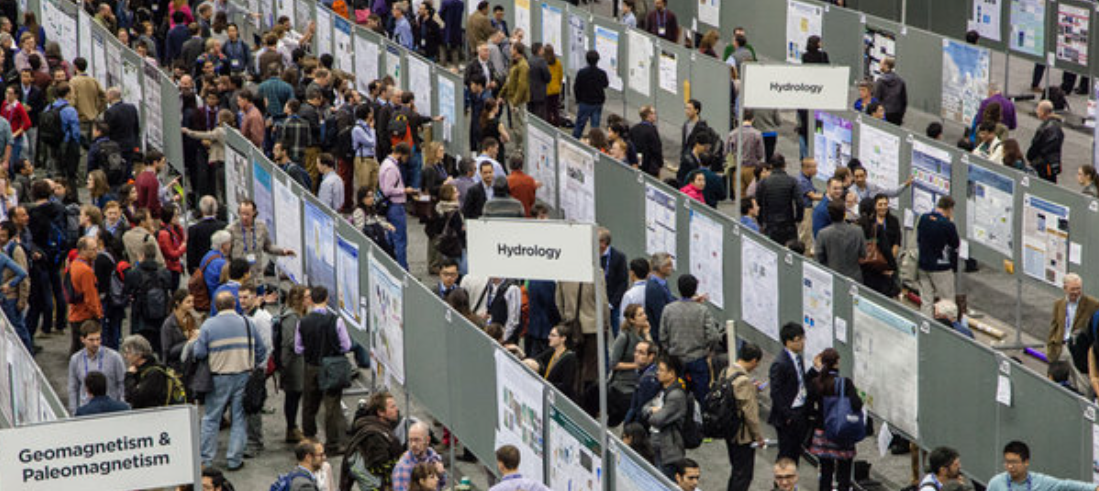
Have you presented a poster at a conference? Why not share it with the wider community!
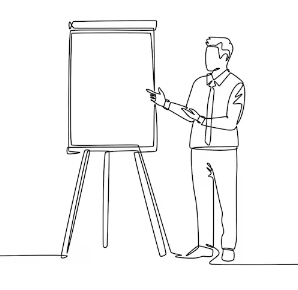 Have you presented a poster at a conference? Why not share it with the wider community!
 By turning your poster into a blog post on the Research Communities, you can reach researchers who were unable to attend the conference, highlight your work to a broader audience, and continue conversations started during the event.
Here is a format you can use to easily share your Poster and conference experience.
Title
A clear and engaging title to describe what this post is about.
E.g. Poster Presentation: [your poster title] at [conference name].
Introduction
This is the text that your readers will see before clicking on your post. Make it a clear description of your post.
E.g. I recently attended [conference name] where I presented a poster which explores [your research topic].
Upload a high-quality image of your poster
Tips:
- Use the highest-resolution version available.
- Ensure all text is legible when the image is enlarged.
- If possible, export directly from the original file rather than taking a photograph.
- If you do use a photograph, make sure it is well-lit, in focus, and free from glare or obstructions.
Once you’ve selected the image you would like to insert, click on the line you would like it to appear on, then select the ‘Image’ button.
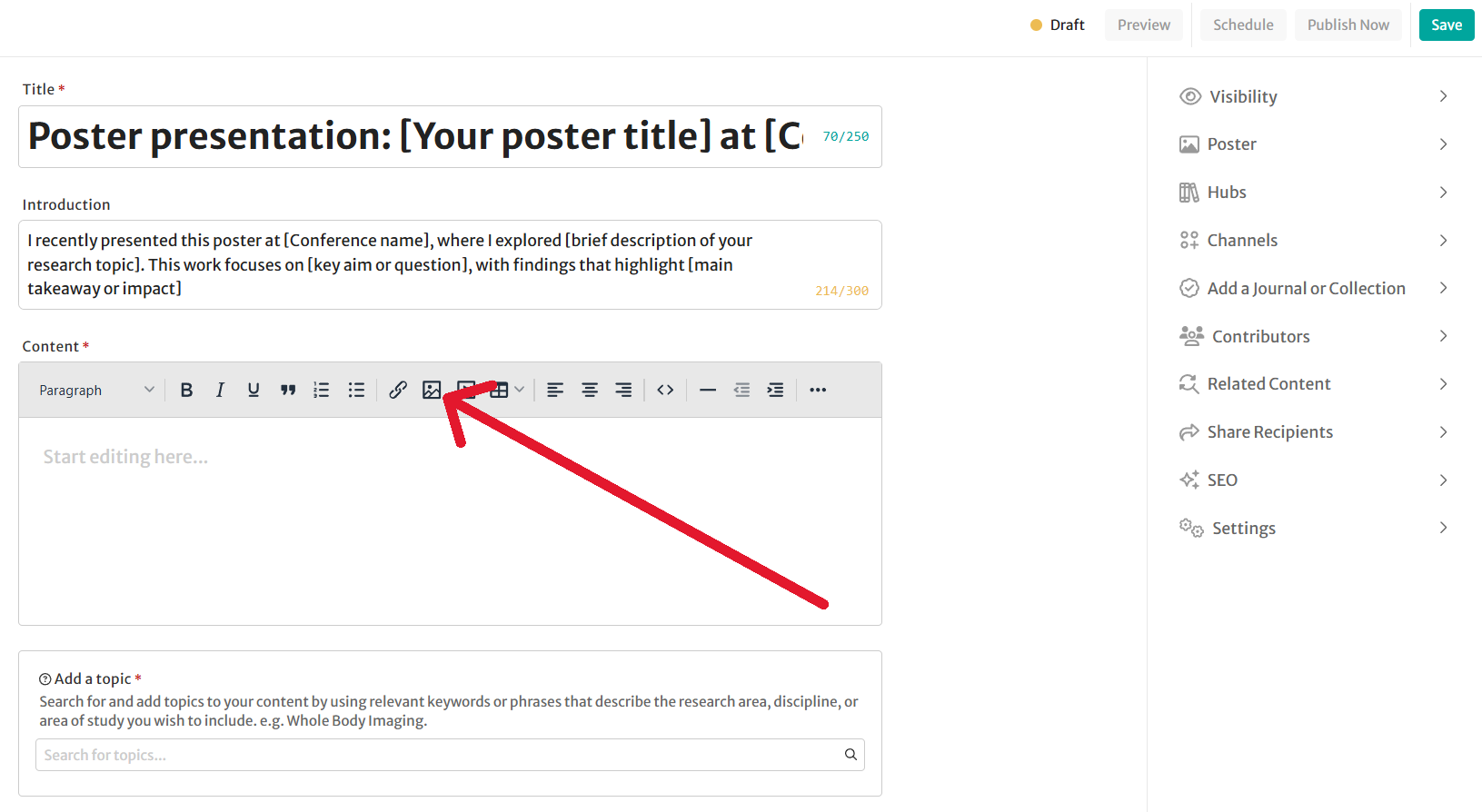
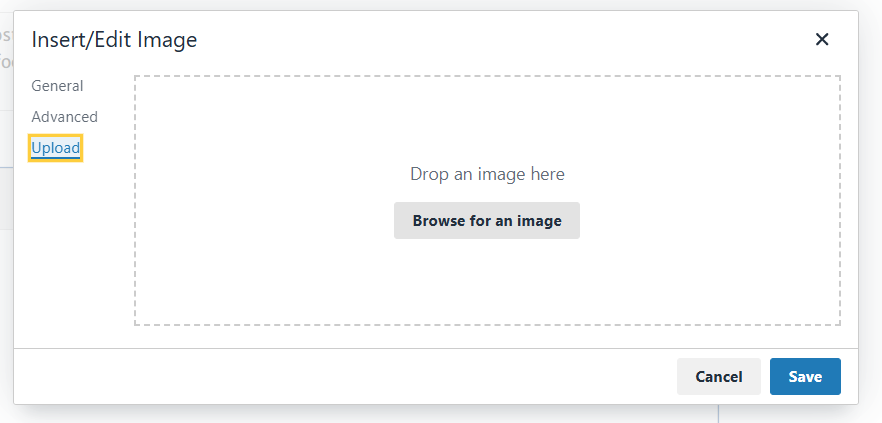
This will open an ‘Insert/Edit Image’ window. Selecting ‘Upload’ to drag and drop your image into the page or browse your device for the image.
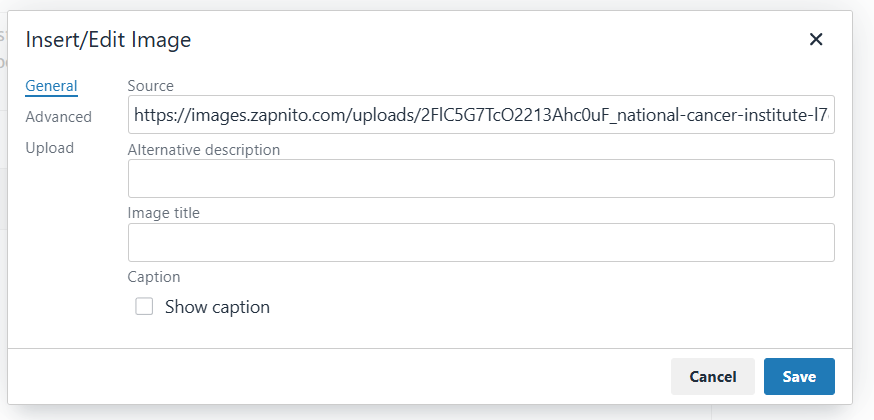
If you then move to the ‘General’ tab, you can add a caption (Image title) and alternative description of the image before saving and uploading it to your post.
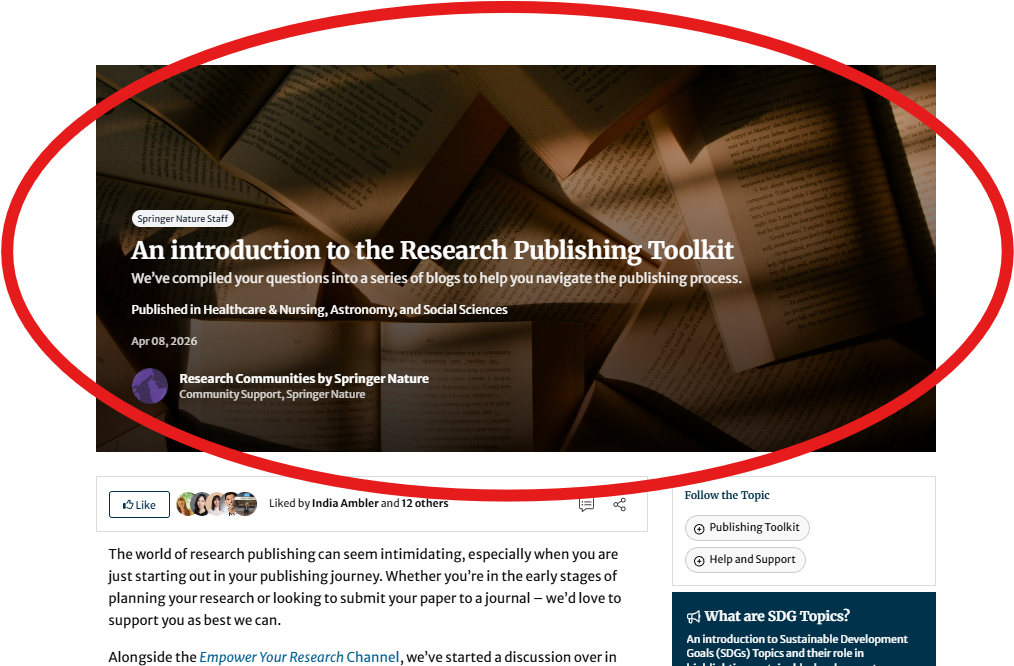
IMPORTANT: Please note that your poster should not be added to the blog ‘Header Image’ on the right of the authoring page, the ‘Header Image’ is the image which appears at the top of the blog behind the title and not an image which is viewed in the main body of the blog.
Add a header to your blog post
Header image on the right side of the authoring page is the image which appears at the top of the blog behind the title and not an image which can be easily viewed in the main body of the blog.
Adding a Header image helps your post stand out on the Research Communities homepage and in email updates. You can use a simple image from the post or one that reflects its theme.
For best results, use a 2:1 aspect ratio (e.g. 1200×600, 1600×800, or 2400×1200). Supported formats are JPG, PNG, and GIF.
To add an image, open the Header Image tab in the post creation page and click Select Image. Choose an image from your Image Library, or click Upload New to add one from your device by dragging and dropping or browsing your files. Remember to save your post once the image has been added.
For more information, read the Help and Support blog post ‘How do I add an image to my post?’ under the section ‘Adding a Header image’.
Tell us about your poster!
Use some of the questions below to introduce your work and provide context for readers.
- What is the main research question or problem your work addresses?
- Why is this research important?
- What are the key findings or take-home messages from your poster?
- Was there anything that surprised you during the project?
- What are the next steps for this research?
Write about your conference experience
Conferences are about more than presenting research. Tell us about your experience attending the event.
- What conference did you attend?
- What was it like presenting your poster?
- What feedback or questions did you receive?
- What was your biggest takeaway from the conference?
- Did you attend any talks, sessions, or workshops that stood out?
- What advice would you give to someone presenting a poster at a conference for the first time?
Ready to publish your blog?
Once you've added your poster image and responses, select the channel Life in Research on the right of the authoring page.
You can then review your post and make sure all figures, images, and any third-party content have the appropriate permissions before clicking publish at the top right of the page.
You can either publish straight away or schedule it for a later date.
Is your poster about a published article? Why not also write a Behind the Paper blog post about your research? For more information, read our blog on How to write an engaging Behind the Paper post.
We look forward to seeing your research and hearing about your conference experience!
Follow the Topic
An introduction to the Research Publishing Toolkit
We’ve compiled your questions into a series of blogs to help you navigate the publishing process.
Continue reading announcement